HP

How it works

Book Online

Do you need a space for a team meeting, seminar, interview, training day, brainstorming session or board meeting?

Discover

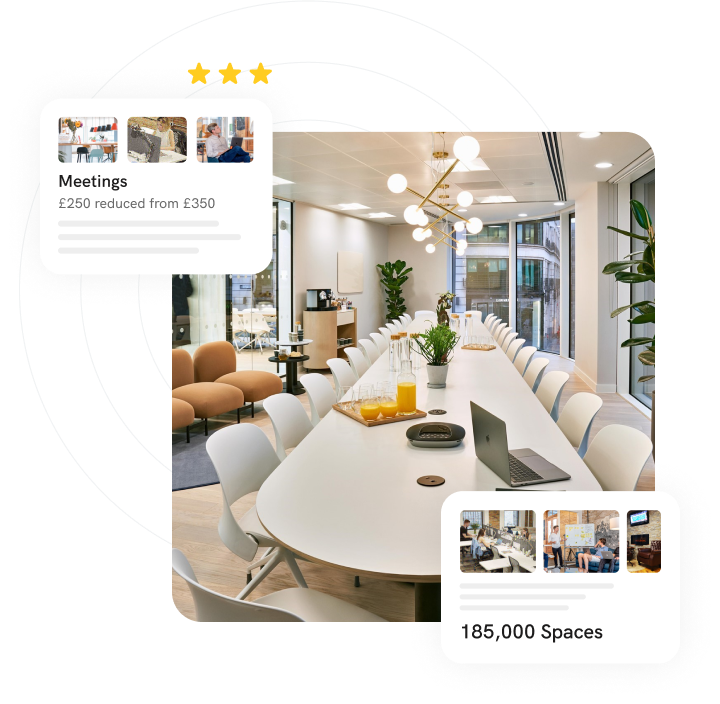
Compare 185,000 safe spaces

Select your ideal space

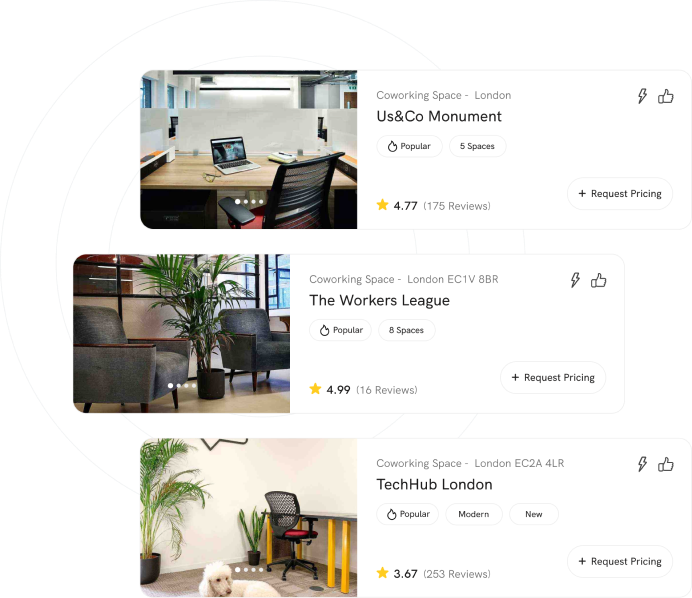
Check prices, images & reviews

Customise

Select coffee breaks, lunch or equipment

Book Online

Book instantly or request to book, the venue will respond within 3 hours
Get Quotes

Shortlist venues

Search your location and pick the venues that suit you

Customise

Submit your requirements from basic to complex events

Receive offers

Easily compare pricing and discounts, all from your Dashboard

Accept venue proposal

Accept the best offer. Our team is here to help throughout the process.

Frequently Asked Questions

Please make sure you haven't changed your system password since last using the platform. If you are still having problems, you can reset your password and contact a member of the support team to help you.

Online bookings are generally for simple small meetings from less than 40 people and allow you to instantly book the venue, payment is with credit card. For more complicated bookings with or without bedrooms , we recommend using the get quote feature that will give you a wider range of options from a selection of venues you shortlist. Payment in this manner can be done by invoicing with venue, as per your company's payment policies.​

Yes, if your policies allow, you can get quotes and book bedrooms only . If you do not see this option in the booking process, please contact our team and they can confirm if you have permissions to do so.

Please make sure you have saved a valid phone number in your account dashboard. A member of the team should have emailed you but also called to inform you of the status of your booking.​

The system can get you quotes for locations without having to confirm it as a booking. However, please be aware that you should inform the booking team of this by chat or email as otherwise they will contact the venues to confirm the booking.

Once you are logged into your dashboard, simply click on the relevant enquiry ID and click “Download Proposal”. If you’d like to download all proposals, click on “Download all proposals”. This will provide an excel extract document of the proposals for easy comparison and review.

Log into your dashboard, to reject simply click on the relevant enquiry ID and click “Reject Proposal”. To accept, click on the relevant enquiry ID and click “Accept Proposal”. You will receive an instant notification email confirming your acceptance of proposal and the contact details of venue representative for your event.

In book online mode, a booking confirmation will be emailed to you.

In get a quote mode, once the event has taken place, the venue representative will usually email you with a copy of the invoice. If you are having trouble obtaining this, simply contact your dedicated support team, who can get this for you.

No, the system can only book venues.

Yes, there is no need to make another enquiry. You can login to your dashboard, go to the relevant enquiry and click on 'edit enquiry' where you can make changes to your request such as , adding refreshments, rooms, number of people attending etc.

No problem, our dedicated content team can upload it to the system, please contact our content team at content@meetingsbooker.com